Razorpay
Complete guide to integrating Razorpay payments with CheckoutJoy for Kajabi, Thinkific, and Kartra courses and memberships
Overview
Razorpay is one of India's leading payment gateways, trusted by millions of businesses to accept online payments securely. With CheckoutJoy's Razorpay integration, you can seamlessly accept payments from customers in India and around the world for your Kajabi, Thinkific, or Kartra courses and memberships.
The integration is fully automated - once connected, CheckoutJoy handles everything from payment processing to granting your customers access to your digital products. No manual work required.
Getting Started
This guide walks you through setting up your Razorpay account with CheckoutJoy.
Quick Setup Guide
Watch this short video to get your Razorpay integration up and running in minutes:
Supported Payment Options
With Razorpay integration, CheckoutJoy enables you to offer flexible payment options to your customers:
- One-time payments - Perfect for single product purchases
- Multiple payments - Split payments into installments for higher-priced offerings
- Subscriptions - Recurring billing for membership and subscription products
Adding Your Account Details
Setting up your Razorpay integration takes just a few simple steps:
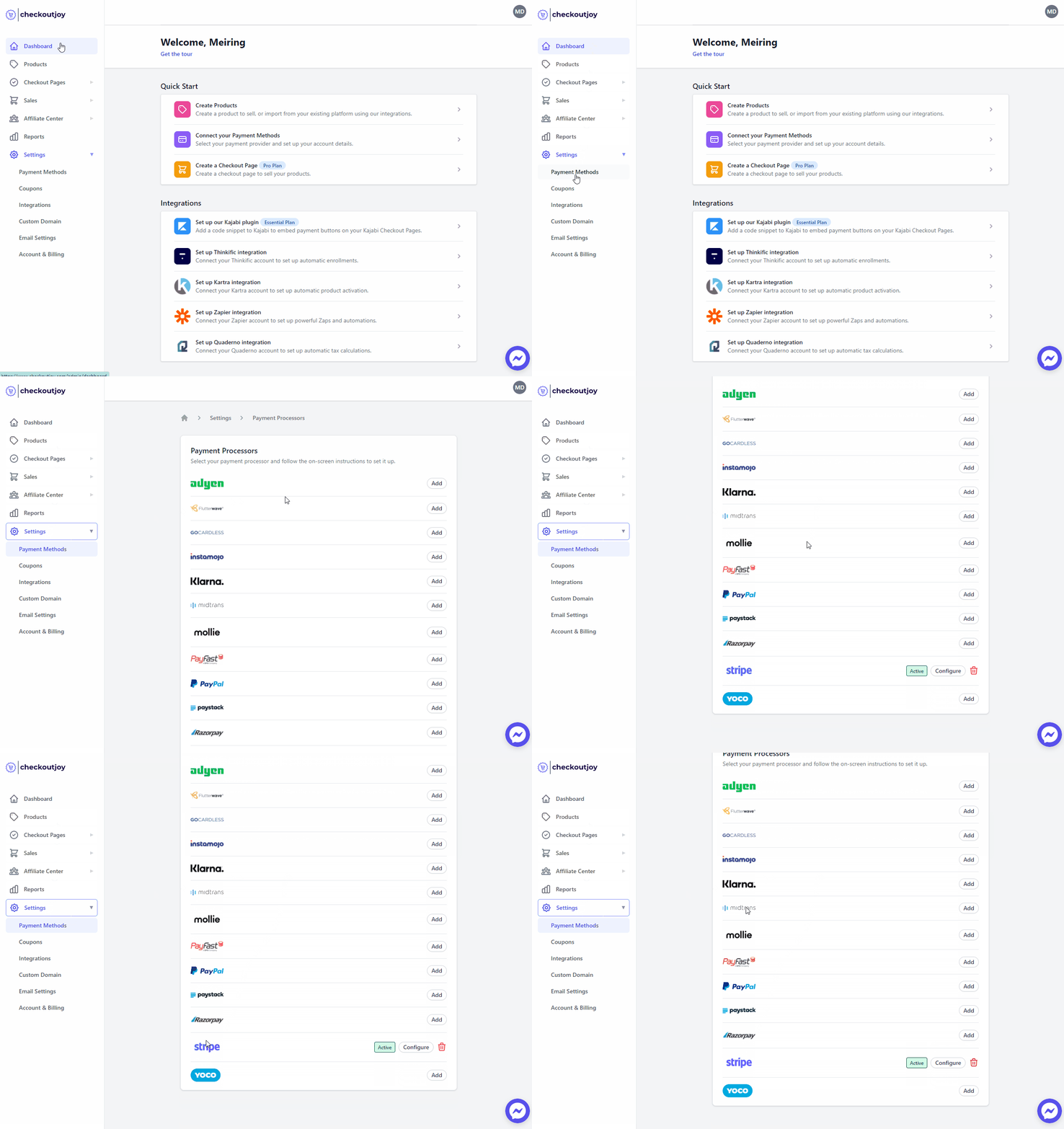
In your CheckoutJoy dashboard:
- Navigate to Settings > Payment Methods
- Select Razorpay from the list of processors and click on Add
Finding Your API Key ID and Secret
To connect your Razorpay account, you'll need to access your API keys:
- Log into your Razorpay dashboard
- Navigate to Settings > API Keys
- Generate a new key pair if you haven't already
- Copy both your Key ID and Key Secret for the next step
Setting Up Webhook Notifications
Webhooks are essential for real-time communication between Razorpay and CheckoutJoy. They ensure your customers get immediate access to your Kajabi, Thinkific, or Kartra products after payment and allow CheckoutJoy to properly manage subscriptions and refunds.
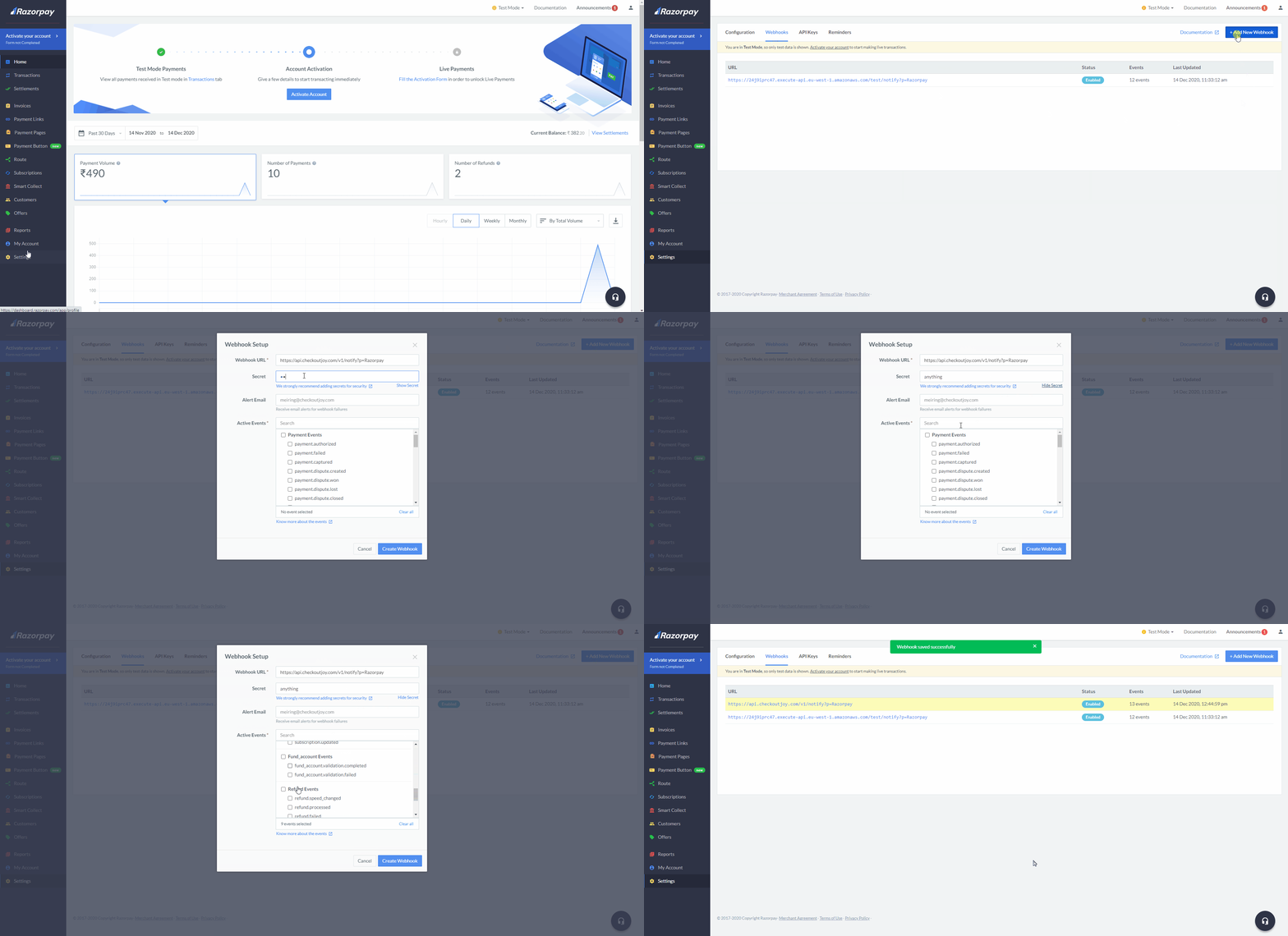
To set up webhooks in your Razorpay dashboard:
- Navigate to Settings > Webhooks
- Click the Add New Webhook button in the top right
- Fill in the form with the following details:
| Setting | Value |
|---|---|
| Webhook URL | https://api.checkoutjoy.com/v1/notify?p=Razorpay |
| Secret | Any string value |
| Active Events | Select all Payment Events, Subscription Events, and Refund Events |
Setting Up Razorpay as a Payment Method on CheckoutJoy
To add Razorpay as a payment method on CheckoutJoy:
- Visit your CheckoutJoy account
- Select Payment Methods from the main menu
- Under AVAILABLE PAYMENT PROCESSORS, select Razorpay
Subscriptions and Payment Plans
Boost your revenue with recurring payments! CheckoutJoy seamlessly integrates with Razorpay to support both subscription and payment plan options for your Kajabi, Thinkific, or Kartra offers.
How it works:
- When you create an offer in CheckoutJoy with either Subscription or Multiple Payments billing type
- CheckoutJoy automatically creates the necessary subscription plan in your Razorpay account
- Your customers enjoy a smooth checkout experience
- You receive payments automatically according to the schedule you've set
Important: Complete your Razorpay payment method setup and API configuration before creating subscription or payment plan offers in CheckoutJoy.