Yoco
Setting up CheckoutJoy to accept payments using your Yoco account
Yoco
This guide will walk through setting up your Yoco account in CheckoutJoy.
Yoco is a South African payment provider. CheckoutJoy uses the Yoco Checkout API, which is a hosted redirect flow: the buyer fills in your CheckoutJoy checkout, gets redirected to a Yoco-hosted payment page to enter their card details, and is returned to your thank-you page once the payment succeeds.
Supported Payment Options
- One-time payments
- Multiple payments
- Subscriptions
Yoco does not currently support subscriptions or recurring billing, so recurring products can't be sold through Yoco. If you sell subscriptions, add a second processor alongside Yoco for those products.
Adding your account details
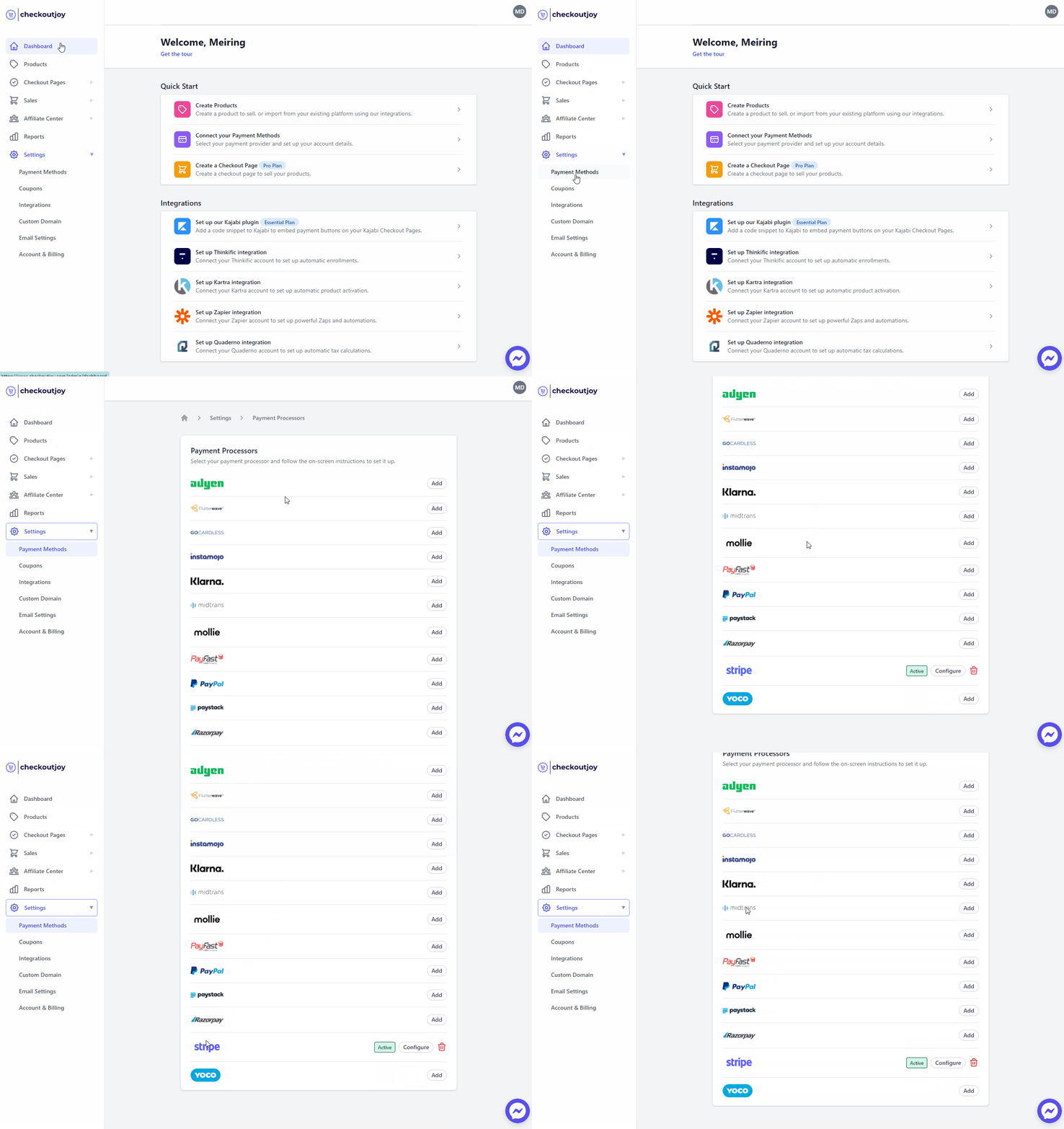
In the CheckoutJoy dashboard
- Navigate to Settings > Payment Methods
- Select your payment processor and click on Add
Finding your secret key
- Log into the Yoco App
- Open the Checkout API integration
- Copy the Live secret key (or the Test secret key while you're testing)
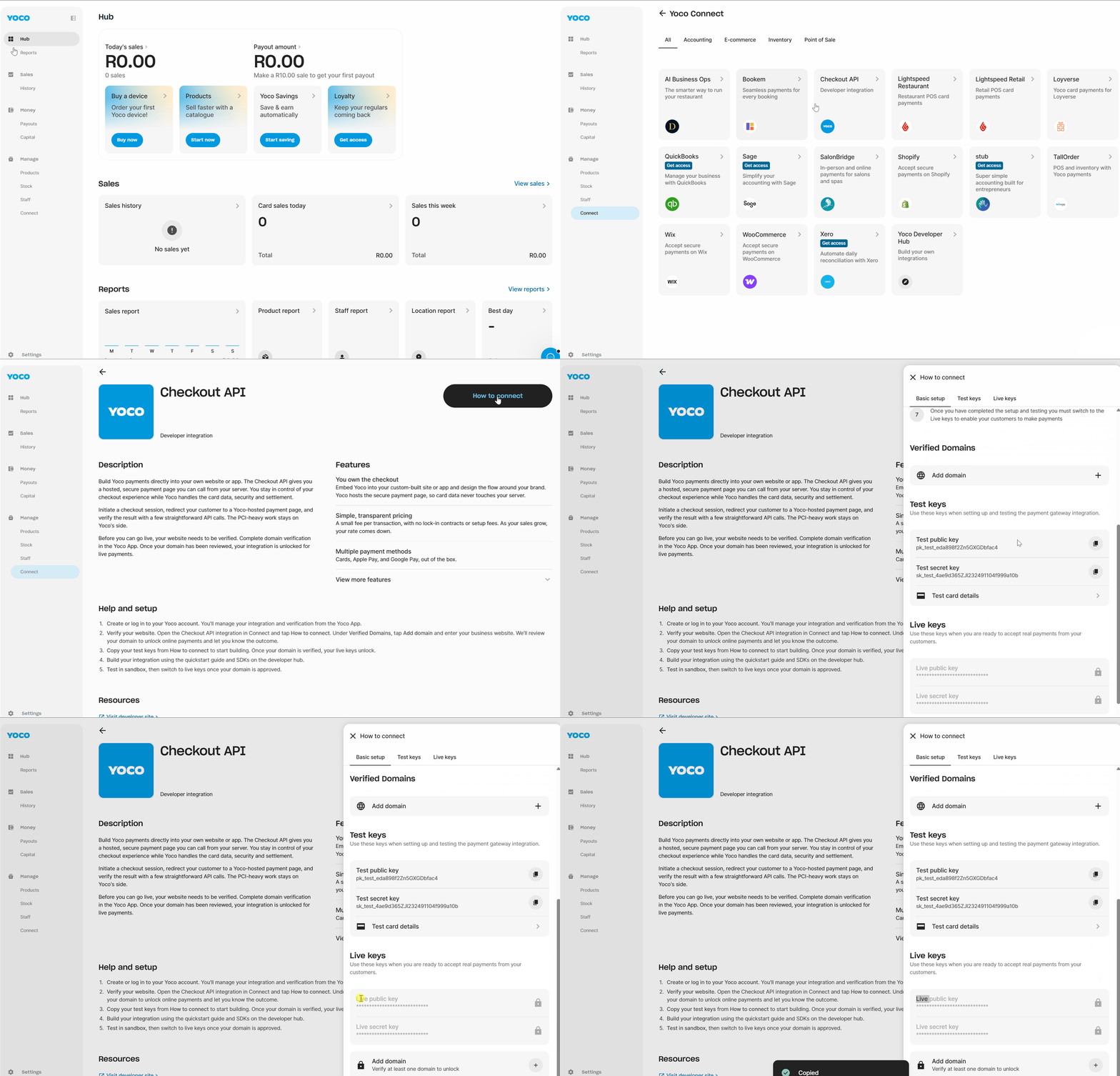
Paste this into the Secret Key field on the form. If your credentials are correct, we will automatically register a webhook for your account to securely verify payments.
**Please note - ** Yoco allows a maximum of 5 webhooks per account, so make sure you have one available webhook endpoint for CheckoutJoy before you link your account.
Setting up Yoco as a payment method on CheckoutJoy
To add Yoco as a payment method on CheckoutJoy, visit your CheckoutJoy account and
select Payment Methods from the main menu.
Under AVAILABLE PAYMENT PROCESSORS - select Yoco.
Refunds
Refunds can be issued from the CheckoutJoy Purchases screen. Both full and partial refunds are supported, and Yoco sends a refund event back to CheckoutJoy so the order and reporting stay in sync.
Order status — pending vs completed
CheckoutJoy marks a Yoco order as completed when it receives the payment.succeeded webhook from Yoco.
If an order is stuck in Pending, first walk through the self-service webhook diagnostic in Troubleshooting — most pending-order issues are simple webhook misconfigurations on the processor side that you can fix in 5 minutes from your own dashboard.
Frequently asked questions
Which currencies does Yoco support?
Yoco settles in South African Rand (ZAR) only. If your product is priced in another currency, CheckoutJoy converts the total to ZAR before creating the Yoco checkout, and the buyer sees the ZAR amount on the Yoco payment page.
Is there a minimum payment amount?
Yes. Yoco does not accept payments below R2.00. Orders under that amount will fail at checkout.
My orders aren't activating after payment — what do I check?
Almost always the webhook. Confirm that:
- The webhook is registered against the correct URL —
https://api.checkoutjoy.com/v1/notify?p=Yoco. - The Webhook Secret saved in CheckoutJoy matches the one Yoco returned when you registered it.
If you re-register or rotate the webhook, Yoco issues a new secret — you must update it in CheckoutJoy or every subsequent event will be rejected as unsigned.
I activated Yoco but it doesn't appear on my embedded widget
Processors must be enabled at both the account level and the widget level. Activating Yoco in Settings → Payment Methods isn't enough — open the specific widget's settings and confirm Yoco is enabled in its payment-method list. Without that second toggle, the widget renders only the processors it was configured with at creation time.