Product Checkouts
A Product Checkout page is the default checkout page that is available for every product that you create in CheckoutJoy. Every product has a unique checkout link that can be shared with customers.
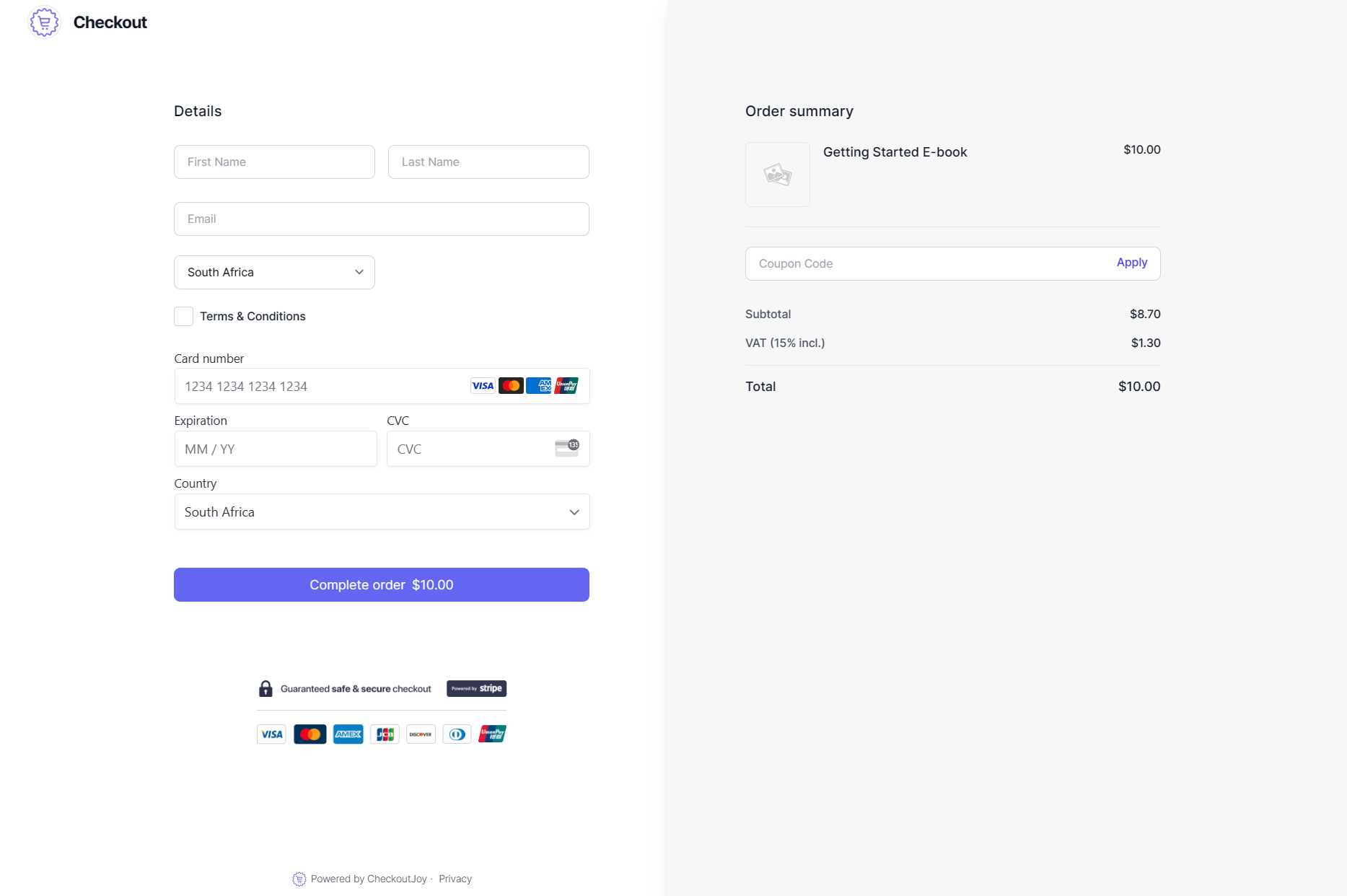
It's created automatically when you create or import a product in CheckoutJoy, and is a simple, fast way to get started and start selling.
A Product Checkout has a pre-defined, mobile-optimised layout and offers the same advanced features as the other checkout options:
- All supported payment processors and options.
- Coupons & discounts.
- Customizable checkout form fields.
- Multiple order bumps
The Product Checkout is different from a Checkout Page. If you want to customize the content of your checkouts, use a Checkout Page instead.
Setting up a Product Checkout
Every product has a default checkout page that is immediately available when you create a product in CheckoutJoy. The link of the checkout is available on all the custom domains of the account.
An example of a Product Checkout link is:
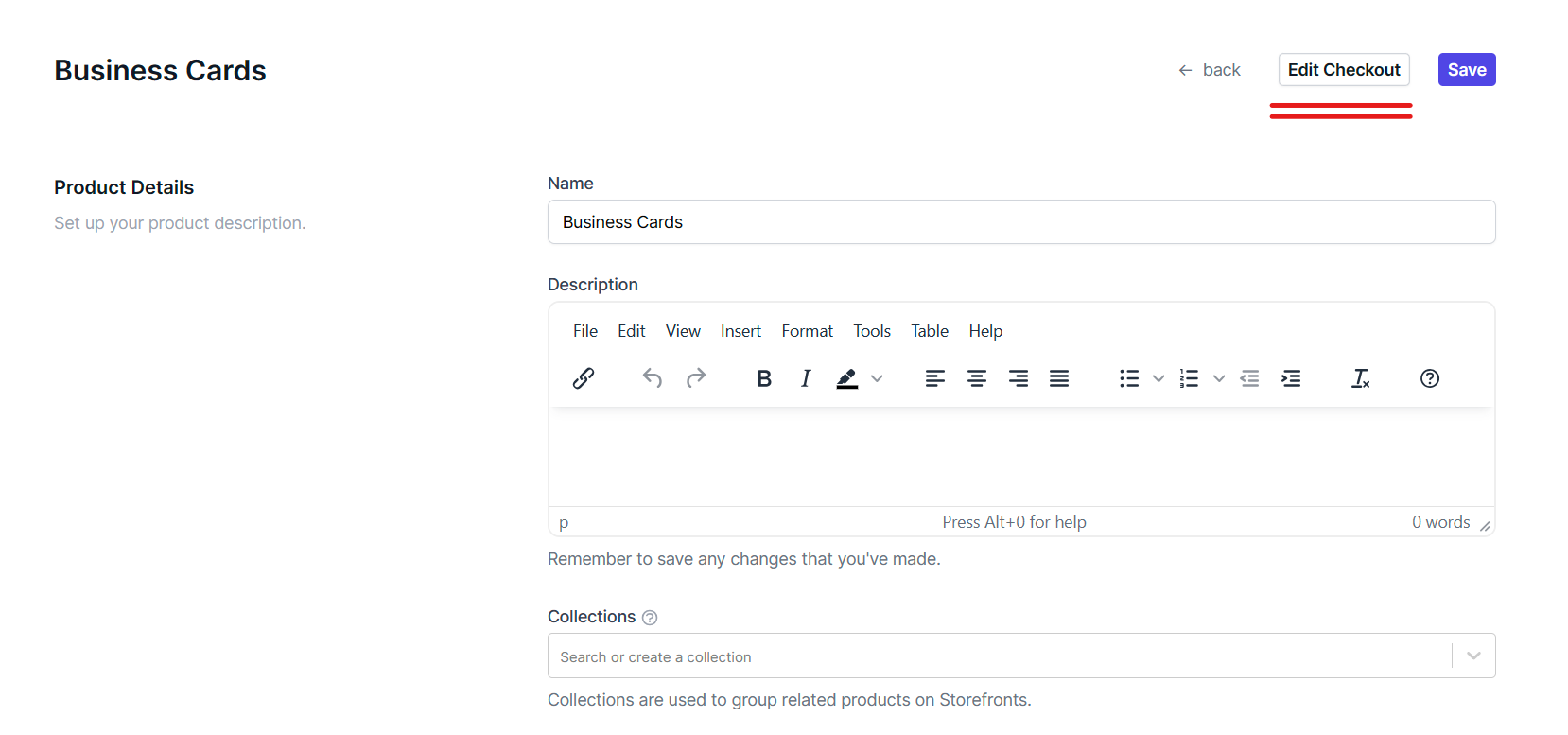
https://demo.checkoutjoy.com/p/cnhi80efoTo edit a checkout, select the product that you want to edit and click on the Edit Checkout button at the top of the screen.
Customizing a Product Checkout
When you select to edit a checkout, the Checkout Editor view is displayed. The Product Checkout Editor is similar to the Storefront Editor and provides all the editable options on the left, with the preview screen.
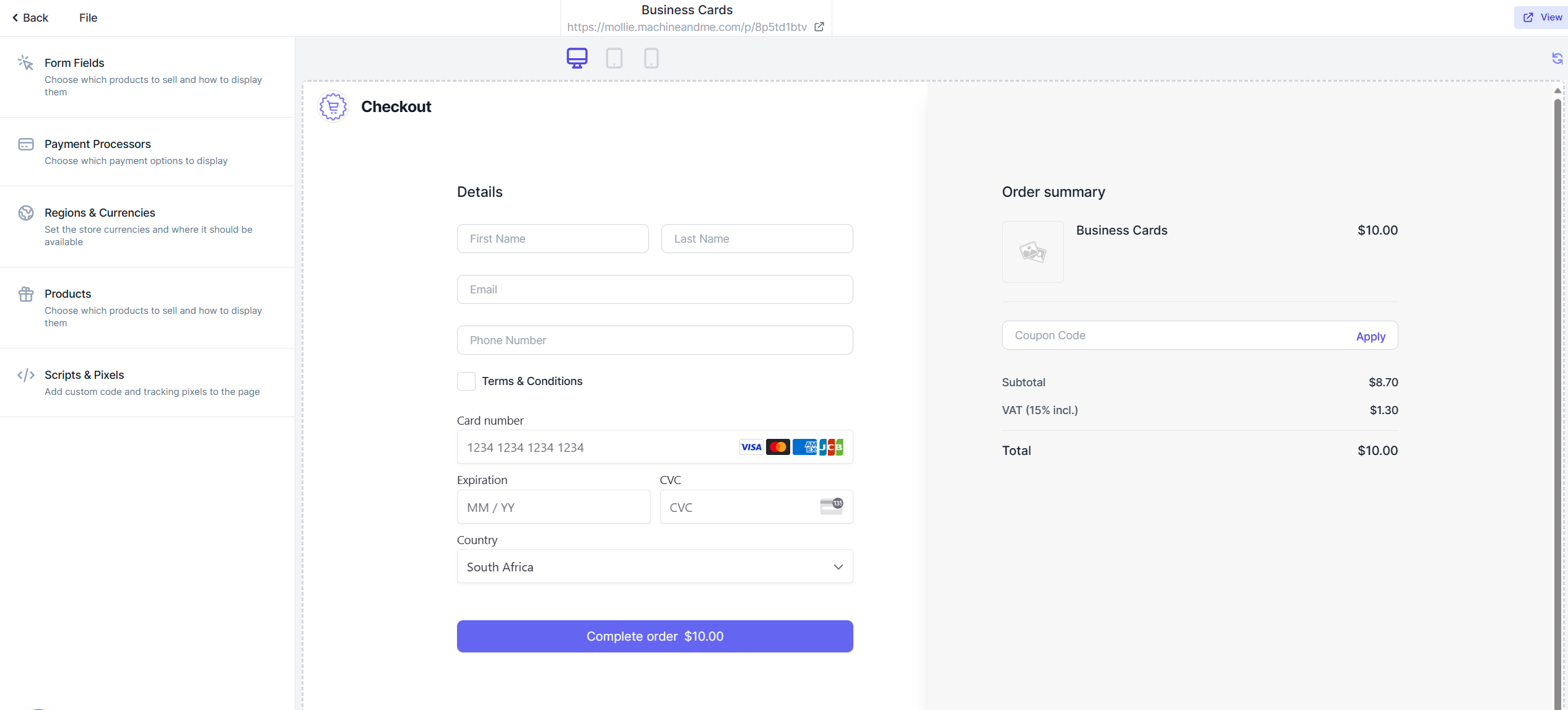
The following options are available when customizing a Product Checkout:
| Option | Description |
|---|---|
| Forms Fields | Customize the form fields that the customer has to complete at checkout. Supports custom fields and languages. |
| Payment Processors | Select the available payment methods for the checkouts. This can be customized for each checkout. |
| Language, Region & Currency Options | Enable automatic translation, add multi-currency support or regional restrictions (for example, only allow customers from Europe to purchase this product). |
| Order Bumps | Add an order bump to the checkout. |
| Scripts & Pixels | Add any custom scripts and tracking pixels to the checkout page. |
Countdown Timer
You can add a countdown timer to the checkout page to notify customers when the checkout will be available.
To enable this feature, go to the Countdown section to set up the countdown timer.
Automatic Language Translation
CheckoutJoy supports automatic translation of the checkout page to any language. This means that the checkout will be automatically translated to the customer's language. The language is detected automatically based on the customer's browser settings.
To enable this feature, go to the Language, Region & Currency Options section and enable the Enable automatic translation option.
Sharing the Checkout Link
To share the link of the checkout, simply copy the checkout link (URL) from the Checkout Editor.
Custom fields
You can add custom fields to a checkout to collect any extra information you need from the buyer (country of residence, buyer type, VAT/Tax ID, custom consent text, etc.).
Supported field types:
- Text input — free-form text.
- Select — drop-down with a fixed list of options.
- Checkbox — pre-checked or unchecked; can be marked required so checkout is blocked until ticked.
Each custom field has a variable name that you control. The buyer's value flows into the purchase.completed outgoing webhook under that variable name. Choose names that match what your downstream system expects so you don't need a separate mapping step.
For consent checkboxes, the exact wording shown at checkout is stored with the order alongside the buyer's true/false value and the submission timestamp. This makes the order record useful as legal/audit evidence (e.g. EU digital-content withdrawal-right consents — see Digital Products).
Billing address and the country field
The country field is part of the billing-address group. Toggling Show billing address off hides the country field — there's no separate toggle to hide country while keeping the rest of the billing address visible.
When the billing-address group is enabled, the country field auto-populates from the buyer's IP-detected location. The buyer can still change it manually.
What's customizable and what's fixed
The hosted checkout has a fixed layout. The following items can be configured per checkout:
- Product image, headline, description text
- Currency and payment-method selection (within what your processors support)
- T&C / consent checkboxes (custom text, required/optional, pre-checked/unchecked)
- Custom fields (text/select/checkbox)
- Billing address group (on/off)
- Coupon field (always shown on hosted pages)
- Country restrictions and fallback URL
- Success-redirect URL
Items that are not currently configurable (these are part of the fixed layout):
- Hiding the product image entirely
- Hiding the promo/coupon code field on hosted pages
- Skipping the "Continue to Payment" step (this is processor-driven; see Stripe payment initiation)
If you need a different shape — for example, a single-page form that posts directly to the processor — use the Checkout Widget embedded on your own page. The widget gives you more layout control because it lives on your site.
Hosted checkout vs Embedded Widget
Settings on a product's hosted checkout do not automatically apply to the widget version of the same product. The widget has its own form-field configuration at /admin/widgets/<widget-id>/. If you've removed a field on the product's hosted checkout but it still appears on a buyer-facing page, confirm whether that page is the widget — if so, update the widget's settings separately.
Processor enablement is also per-widget. Activating a processor in Settings → Payment Methods at the account level doesn't automatically expose it on every widget. Open each widget's payment-method settings and confirm the new processor is enabled. This trips up new merchants who add Vipps, Klarna, or another processor and then can't see it on a buyer-facing widget.
Terms & Conditions — best practice
For T&C acceptance at checkout, link to your full T&C hosted on your own website rather than pasting long T&C content into the in-checkout block. Two reasons:
- The block has a recurring "unclickable checkbox" bug pattern that has cost merchants entire sales windows.
- Long inline T&C is harder to maintain (legal updates, translations, formatting).
The recommended pattern is a checkbox + short consent statement + link to your T&C page:
☐ I agree to the Terms & Conditions and Privacy Policy
This still satisfies the "explicit acceptance" requirement for industries that legally require T&C acceptance (medical/health/finance/etc.). The buyer can click the link to read the full text before ticking.
If your existing in-checkout T&C block becomes unclickable, removing and re-adding it as the link-plus-checkbox pattern is the reliable fix.
Custom Country dropdown — use the Billing Address field
The custom "dropdown" field type is meant for short, merchant-defined option lists. It does not auto-populate with a country list. If you add a custom dropdown for "Country", you'd have to manually list every country yourself.
For a full country selector that auto-populates, enable the Billing Address field group — it includes a built-in country picker that auto-detects the buyer's country from their IP and supports manual override.
Hosted video on the checkout — direct MP4 URL required
If you want to play a video on your checkout, the video field needs a direct MP4 playback URL (https://...example.com/video.mp4). Hosts that work:
- Amazon S3
- Cloudflare R2 / Stream
- Any web host that serves the raw
.mp4file directly
Google Drive share links don't work — they don't return a direct media stream. YouTube/Vimeo embed URLs also don't work in this field (use the marketing-page embed pattern for those, not the checkout video field).